
As we launched KeyReply for mobile, there have been many users who asked us if we can help them better with desktop workflows. You can now download and use [KeyReply for Mac] (https://keyreply.com/mac.html)
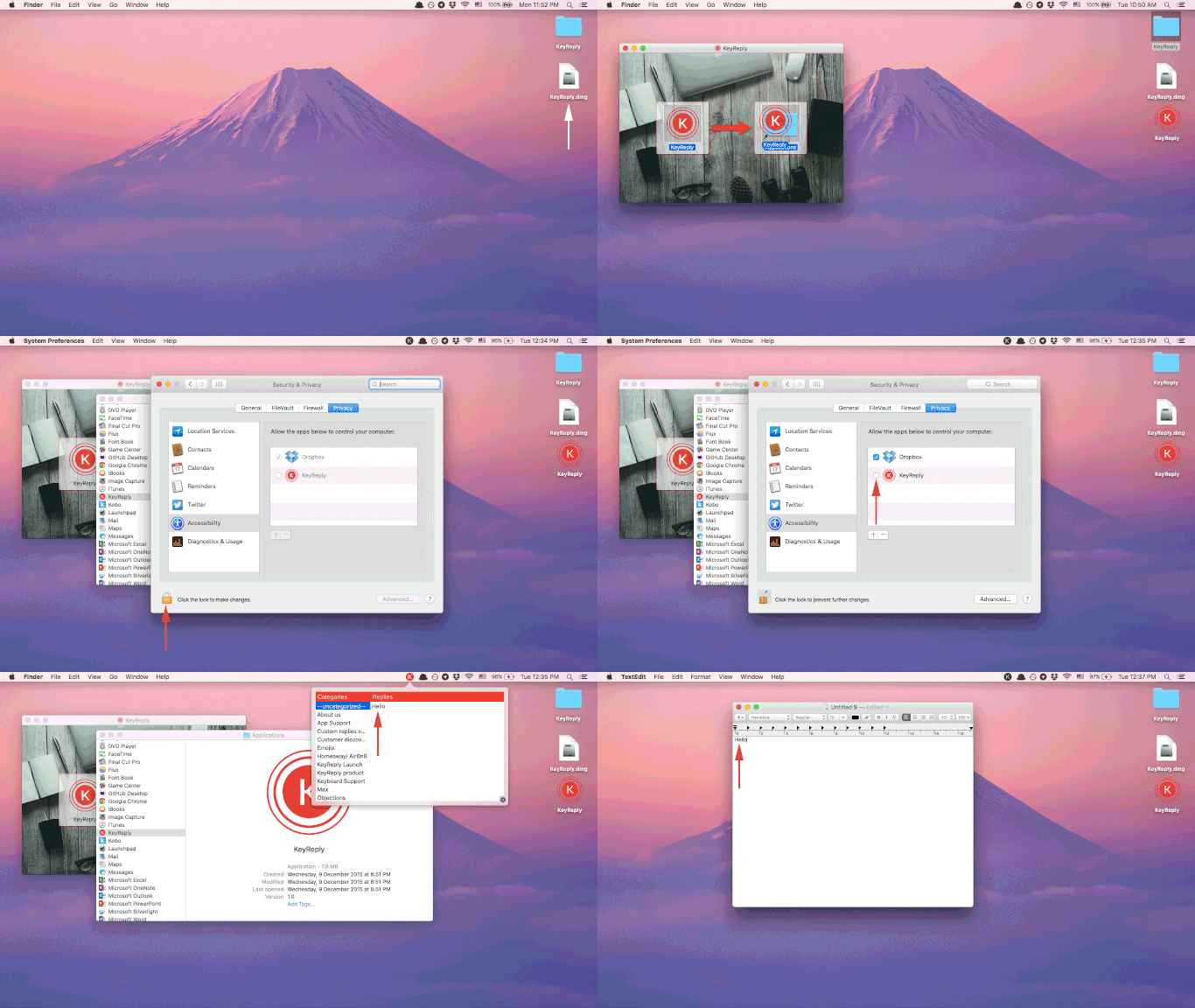
We prepared an instructions guide below for you to understand more about how to install and use KeyReply for Mac.
##English Instructions
- Click to open the .dmg file
- Drag the KeyReply image to the Applications folder
- Open the Applications folder
- Click on KeyReply
- A system prompt will pop up; Otherwise, go to Systems Preferences —> Security & Privacy —> Privacy
- Click on the lock on the bottom left to make changes
- Enter your password (if applicable)
- Check the box next to KeyReply to activate it
- Click on the lock to save it
- Let’s test it! Open KeyReply app on your menu bar
- Select the reply you want to use
- Click on a selected text field anywhere on your Mac
- Done!
##Mandarin Instructions 华语说明
利用KeyReply初版Mac 应用的解说:
-
打开文件
-
把应用拉到App 文件夹里
-
打开App文件夹
-
点击KeyReply
-
有个系统通知会显示,如没有 - 请到系统偏好设置 > 安全性与隐私 > 隐私 > 辅助功能
-
点按所按钮已进行更改
-
输入密码,并解锁
-
点击允许KeyReply应用
-
点击所按钮已存入更改
-
点击右上角菜单上的的K符号开始KeyReply
-
选择你所要用的回复
-
点击到文本或电邮编辑中,选择的回复会既然出现!如没有的话可以选用粘贴到文本中。
-
成功!
Thank you and we look forward to your feedback.